How to Create an Online Quiz for Students (and Run It Live in Your Online Class)
Create an online quiz in minutes, share one link, and run it live on Zoom, Google Meet or YouTube Live. Timers for stream delay, passwords, and real screenshots.
 Quizboard Team
10 min read
Quizboard Team
10 min read
On this page
- Live or self-paced: which online quiz do you need?
- Step 1: Create the quiz (let AI write the first draft)
- Step 2: Set timers that allow for online delay
- Step 3: Set a custom room code and a password
- Step 4: Share one link with your class
- Step 5: Set up your screen for an online quiz
- Step 6: Run the quiz during your online class
- Step 7: After the quiz
- Zoom, Google Meet and YouTube Live: what changes
- Troubleshooting online quizzes
- Frequently asked questions
- Run one in your next online class
- References
Most guides on this topic show you how to build a form that students fill in on their own time. That works for homework. It doesn't help when you're teaching 40 students on Google Meet or a YouTube Live stream and want to know, right now, whether they understood the last ten minutes.
This guide covers the live kind: a quiz you create before class, then run together with students during an online lesson, with everyone answering the same question at the same moment. Every screenshot comes from a real test session we ran on Quizboard, with six fictional students joining from phones.
Live or self-paced: which online quiz do you need?
An online quiz comes in two forms, and picking the wrong one is the most common reason a quiz falls flat.
| Live online quiz | Self-paced online quiz | |
|---|---|---|
| When students answer | Together, during your class | Any time before a deadline |
| Who controls the pace | You, one question at a time | Each student |
| Best for | Warm-ups, checking understanding mid-lesson, revision games | Homework, take-home tests, practice |
| What you learn | Which questions confused the class, while you can still fix it | Each student's score, after the deadline |
| Typical tools | Quizboard and other live quiz platforms | Google Forms and other form-based quiz builders |
Quizboard runs live quizzes only. If you need a homework quiz that students complete on their own over several days, a form-based tool is the better fit, and the rest of this guide won't apply. If you teach live online classes, keep reading.
Step 1:Create the quiz (let AI write the first draft)
You can type questions yourself in the quiz editor, but for online classes the fastest route is the AI Assistant. Describe the quiz you want, attach a chapter PDF or a photo of a textbook page if you have one, and it builds a quiz you can open in the editor.
Here's the exact prompt we used:
Create a 4-question quiz on the water cycle for Class 6 students. Use single-choice questions with 4 options each and a 30 second timer.
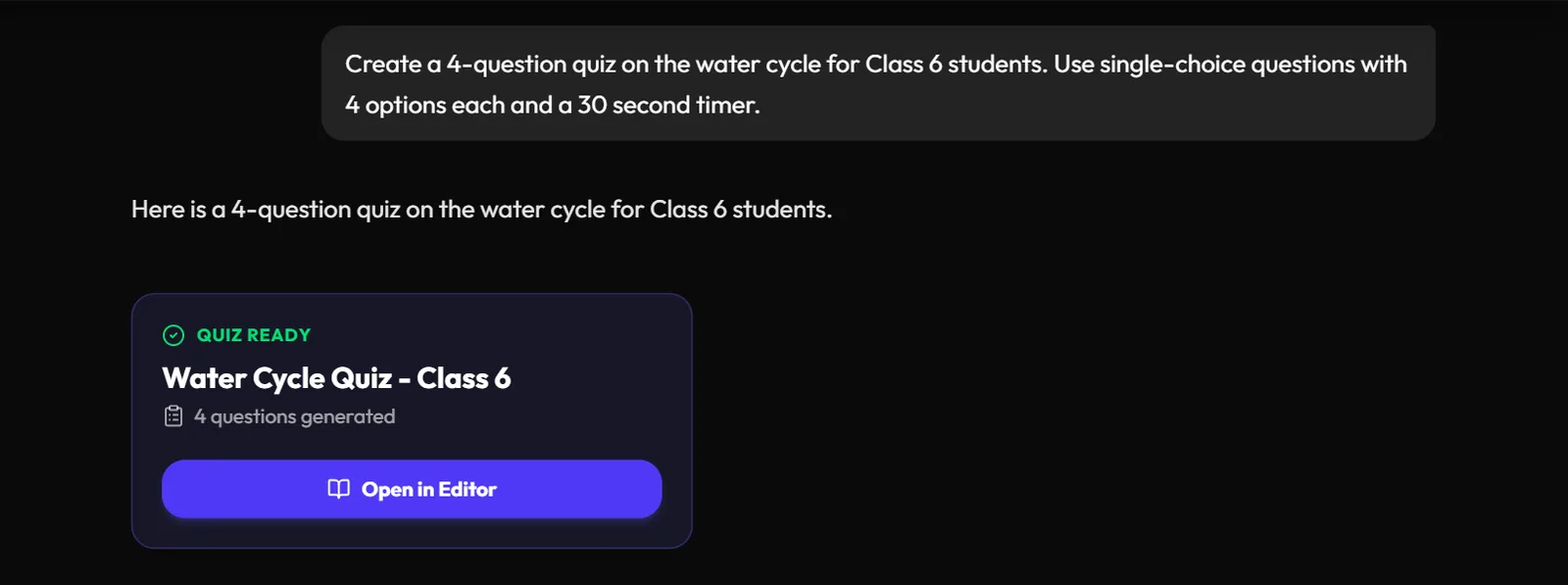
The prompt works because it names the class level, the number of questions, the question type and the timer. Leave those out and you'll spend longer editing than you saved. A few more prompts that work well for online classes:
- "Make 6 questions from the attached PDF, Chapter 3 only. Mix single and multiple choice."
- "Create a 5-question warm-up on last week's topic: fractions on a number line, Class 5."
- "Write 8 board-exam style questions on chemical reactions, Class 10, with one diagram-based question I can add an image to."
Then open the quiz in the editor and check it like you'd check a colleague's paper. In our test, all four answer keys were correct (evaporation, condensation, precipitation and transpiration). Don't assume that will always be true. Read every question, confirm the marked answer, and rewrite any wrong option that no student would ever pick.
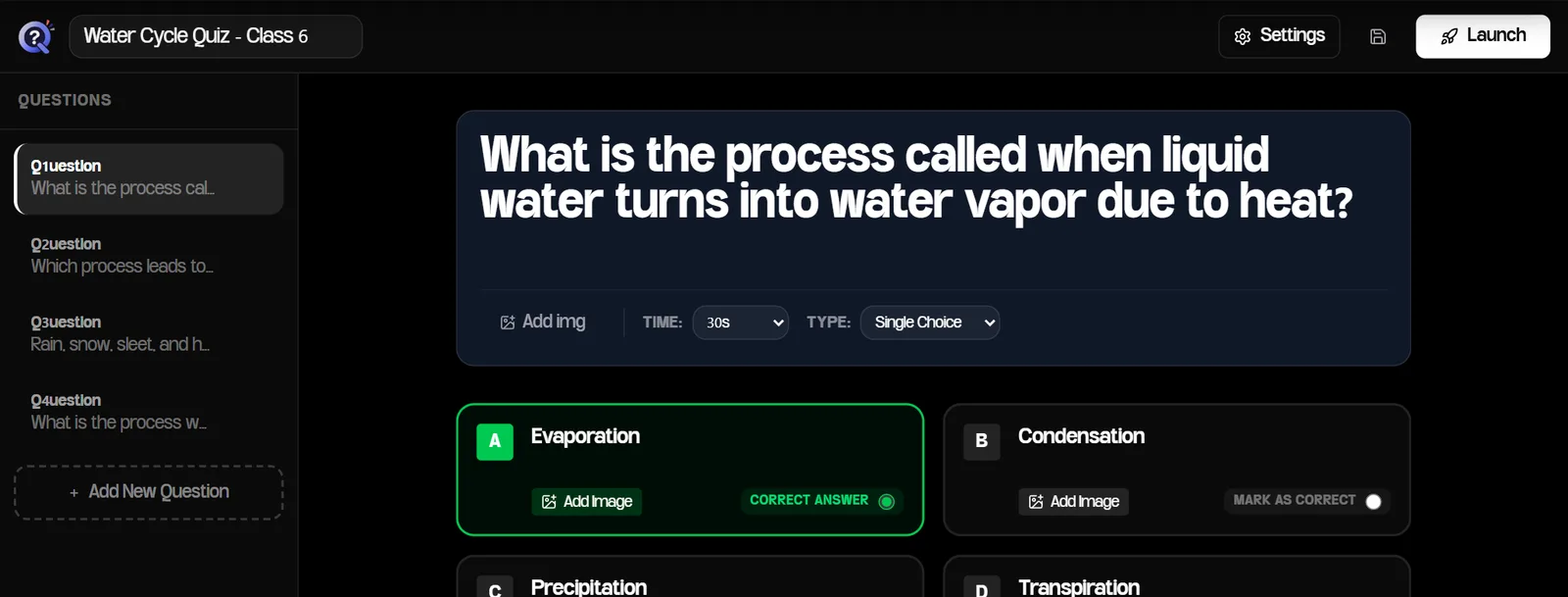
Quizboard supports single choice, multiple choice (students select every correct option) and true/false questions, and you can add an image to any question or option. For tips on writing questions that reveal what students misunderstand, see the question-writing section of our guide to hosting a live quiz in class.
Step 2:Set timers that allow for online delay
Online classes add a delay between your screen and your students' screens. On a video call it's usually small. On a live stream it's longer: YouTube's own help page says most viewers of a low-latency stream see a delay of less than 10 seconds, and most viewers of an ultra-low latency stream see less than 5 seconds (YouTube Help).
Your students lose that time from every question's timer. A 20-second question can feel like a 10-second question to a student watching a stream that's 10 seconds behind.
| Where you teach | Starting timer for a recall question | What to change |
|---|---|---|
| Zoom or Google Meet | 20 to 30 seconds | Read the question aloud before starting it |
| YouTube Live, ultra-low latency | 25 to 30 seconds | Add about 5 seconds |
| YouTube Live, low latency | 30 to 40 seconds | Add about 10 seconds, or switch the stream to ultra-low latency |
These are our starting points, not research-derived rules. Raise them for questions that need calculation or diagram reading.
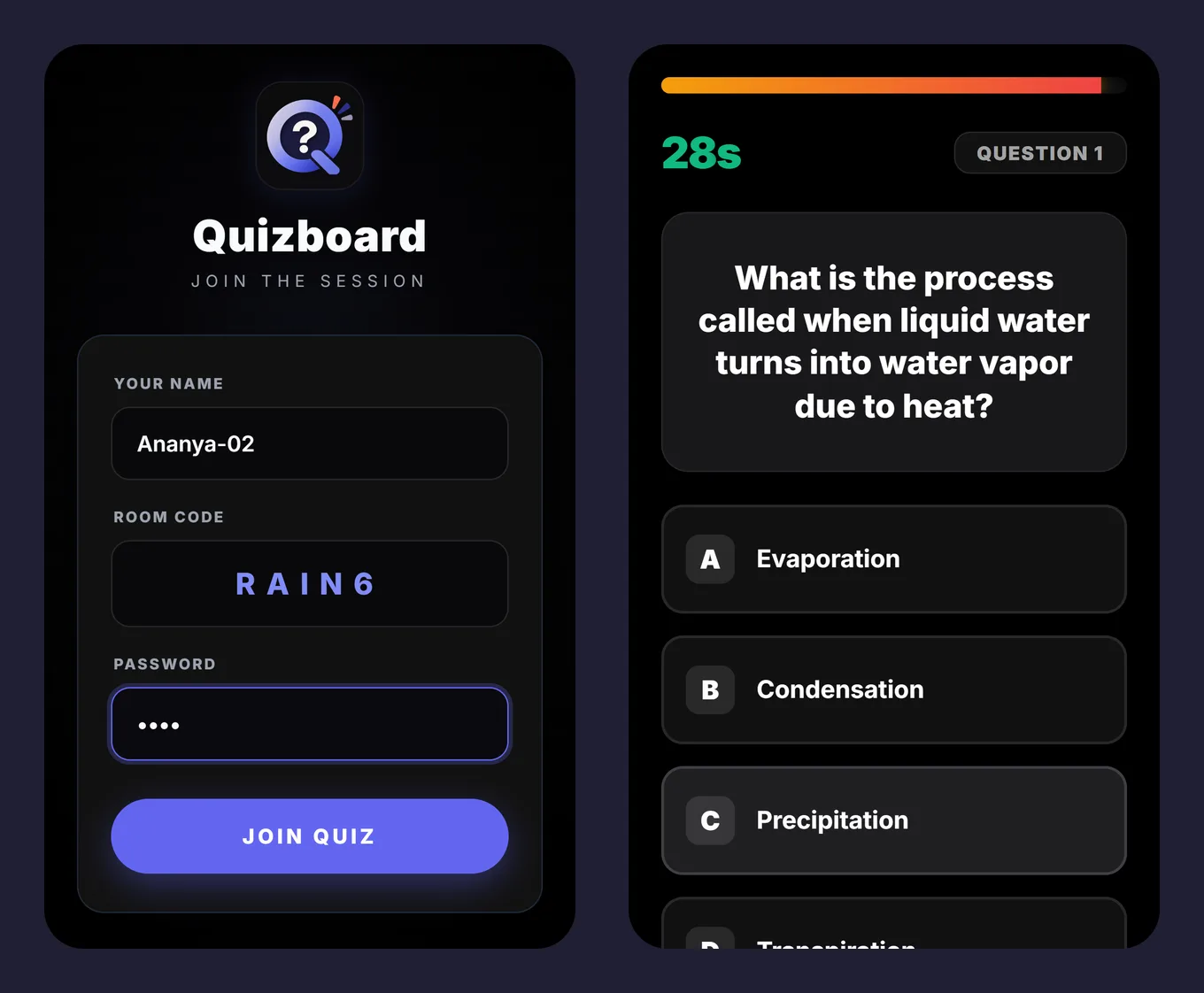
There's a second fix that removes most of the delay problem: Quizboard shows the full question and all the options on each student's phone. Students don't have to read the question from your shared screen at all, so a student whose stream is behind still sees the question the moment it starts.
Step 3:Set a custom room code and a password
Before launching, open Settings in the quiz editor. Two options matter far more online than in a classroom:
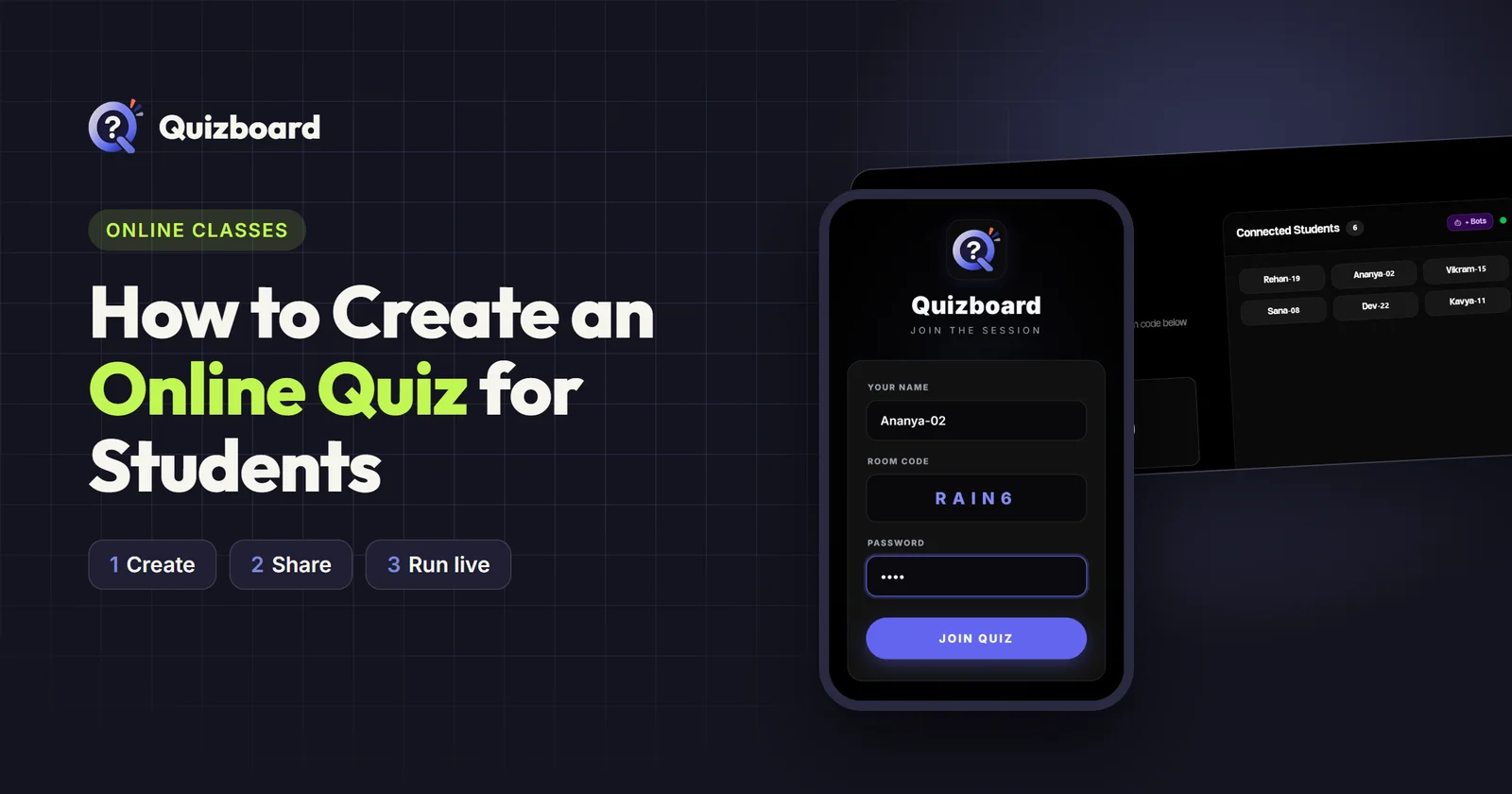
- A custom room code such as
RAIN6instead of six random digits. It's easier to say aloud, easier to type, and fewer students mistype it. - A room password. On a public YouTube stream, anyone watching can see the room code on your screen. With a password that you only post in your class group, strangers can't join.
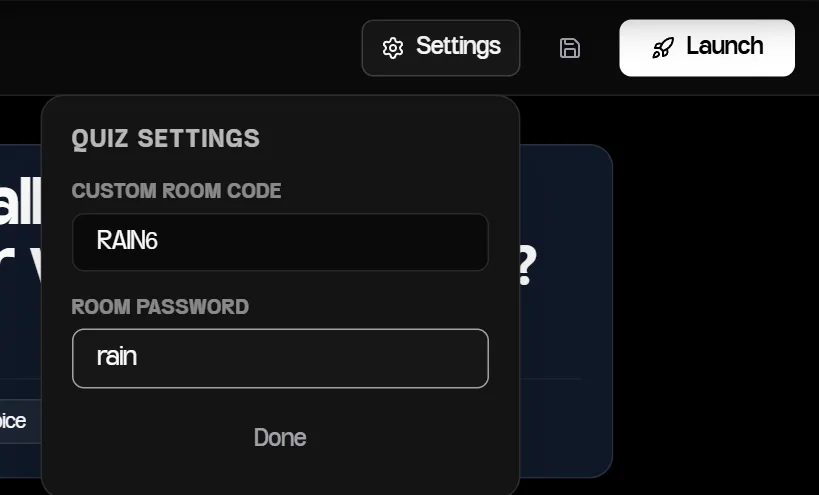
We tested the password from a separate phone: entering the wrong one returned an "Incorrect password" message and the student couldn't join.
Step 4:Share one link with your class
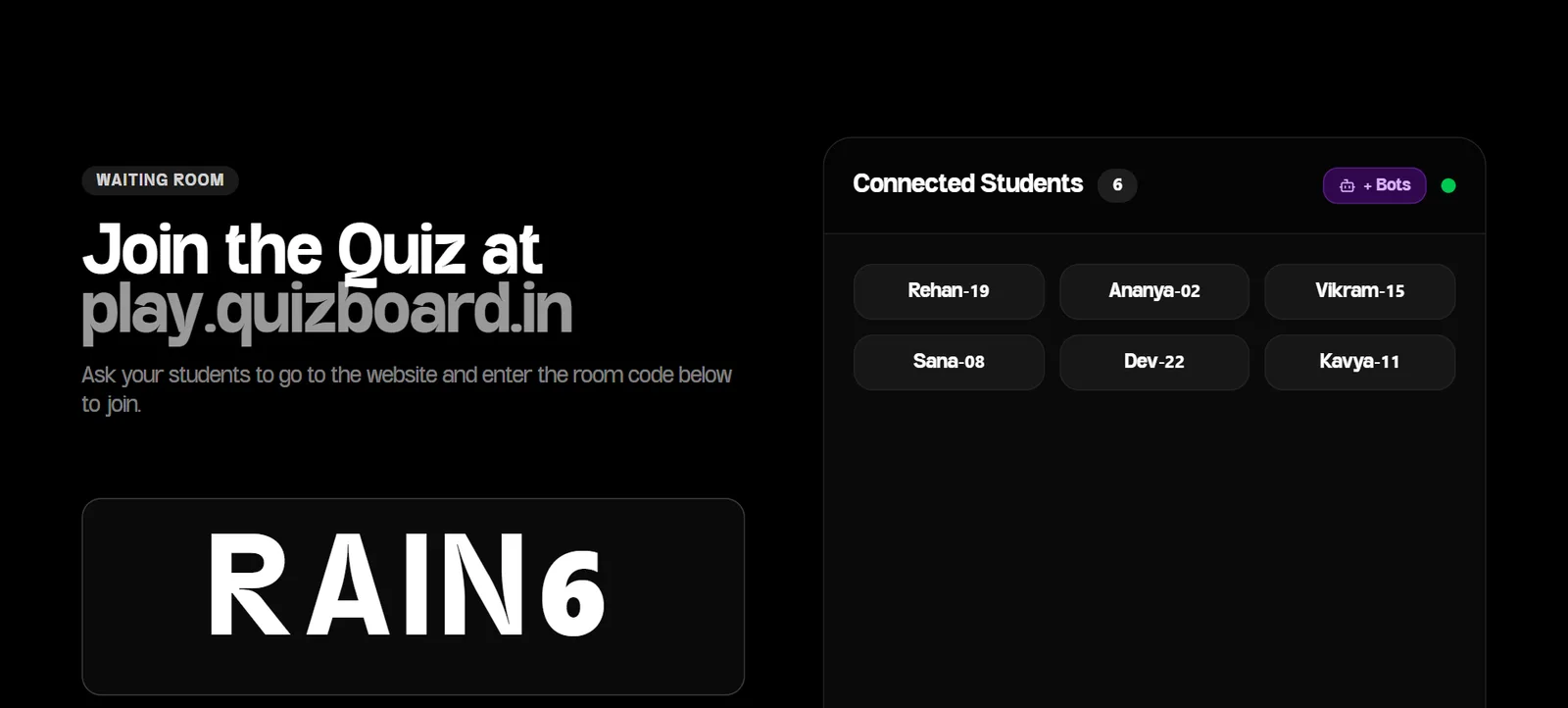
Click Launch. The waiting room shows your room code and the join address, play.quizboard.in. Use Share Link to copy a link with the room code already filled in, and post it where your students already are: the class WhatsApp group, the Zoom or Meet chat, or a pinned comment on your stream.
On the student side, the link opens a page with the code filled in. They type their name and the password, then tap Join Quiz. They don't need an app or an account.
Step 5:Set up your screen for an online quiz
Share your Quizboard screen in your video call or stream, the same way you'd share slides. Keep the waiting room up while students join so everyone can see the code.
Many students join an online class on the same phone they'll answer on. They can switch from the Meet or YouTube app to the browser tab and still see the whole question. If the browser loses its connection while they switch, rejoining with the same name brings back their score. Tell them this before the first question, because the first time a student leaves the class app to answer, they tend to worry they'll miss something.
Step 6:Run the quiz during your online class
Click Start Quiz Now when the student list looks complete. Late joiners can still come in; they land on the current question. For each question:
- Read it aloud. Students on a delayed stream hear it a few seconds late, but they have it on their phone anyway.
- Watch the response count and the picks for each option on your screen.
- When everyone has answered, click Show Results (Early) instead of waiting out the timer.
- Before moving on, talk through any question where the class split between two options.
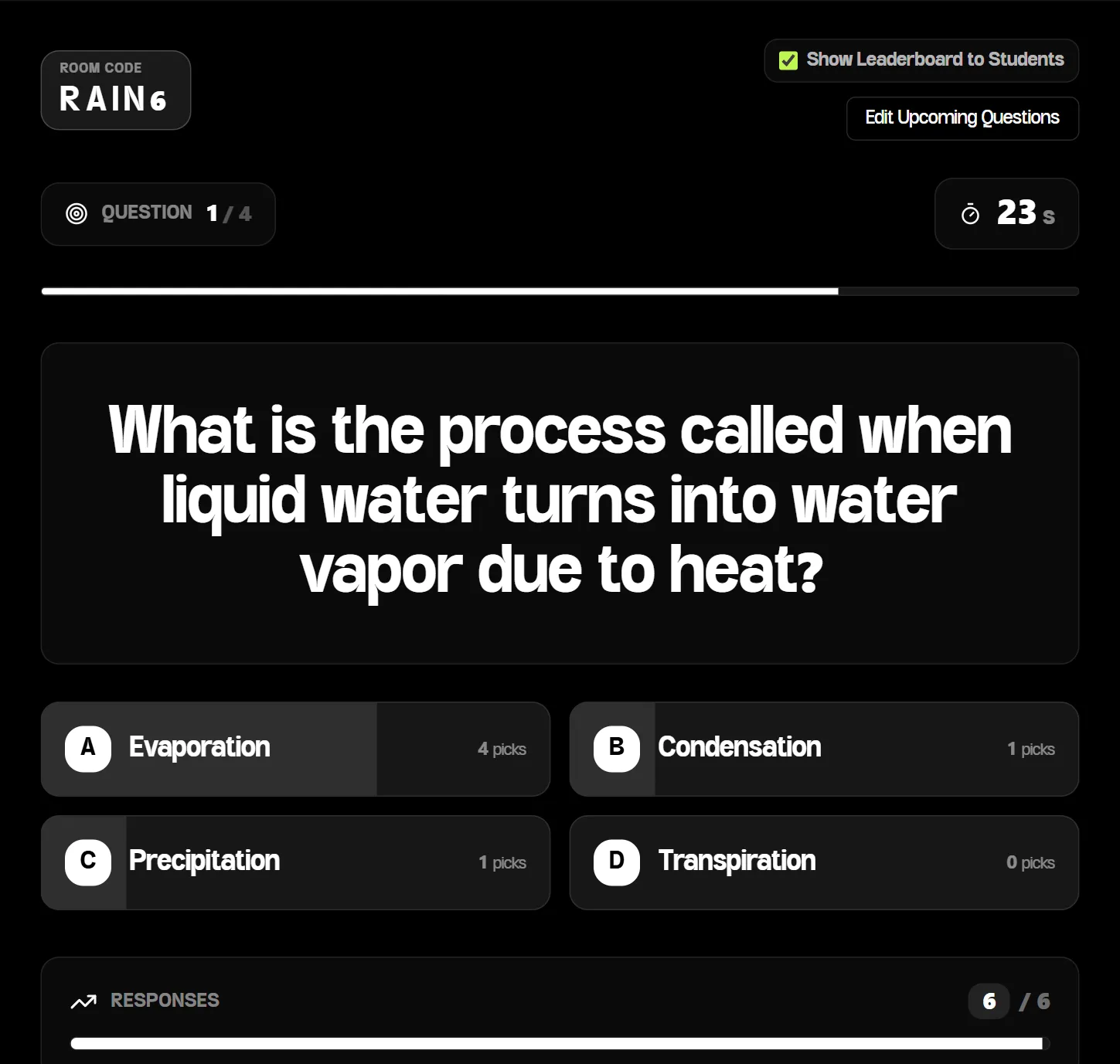
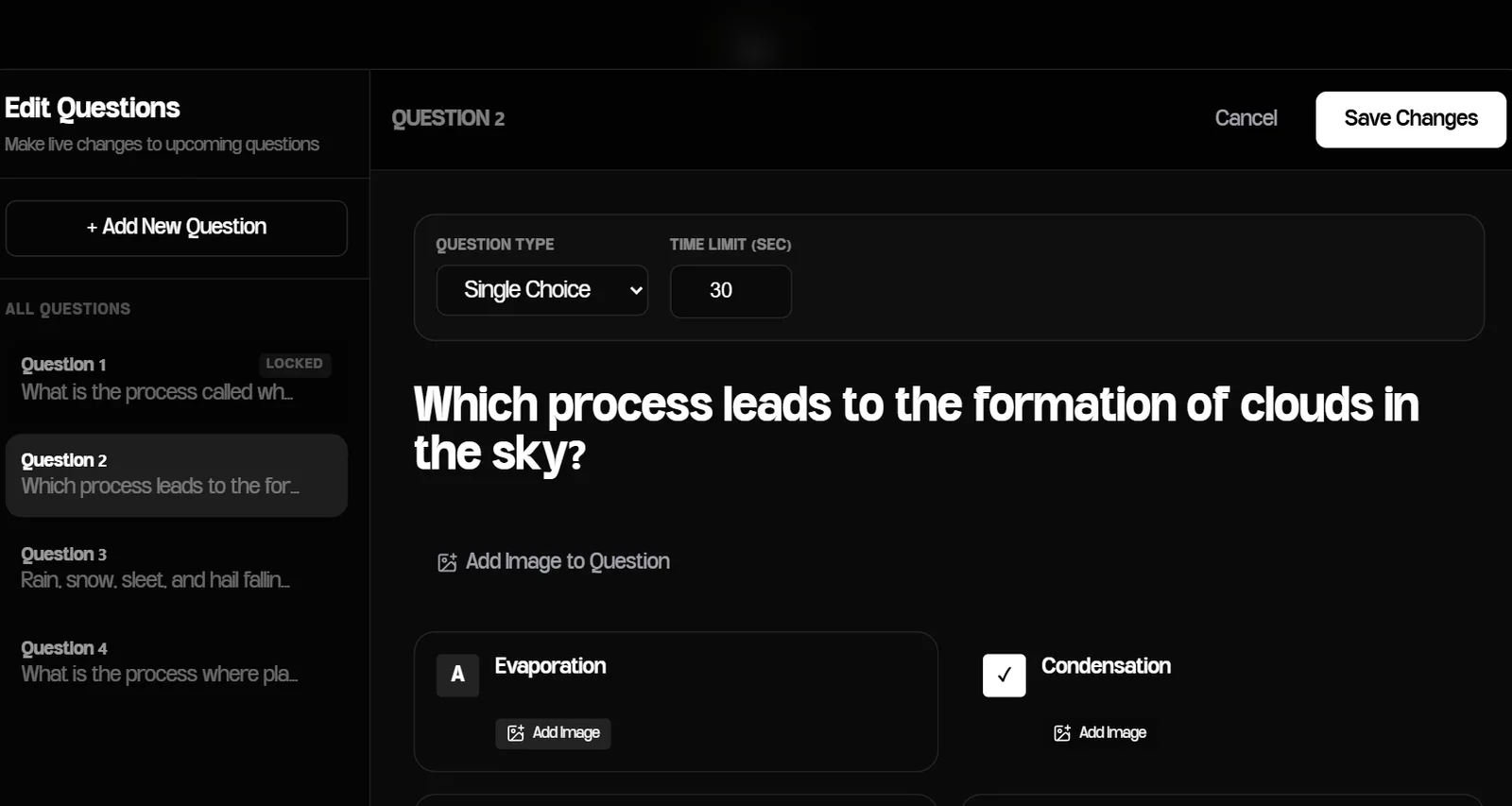
If you notice a mistake in a later question while the quiz is running (a typo, or an AI answer key that's wrong), click Edit Upcoming Questions. You can change any question that hasn't been asked yet. Questions already shown are locked.
For online classes, keep the leaderboard in mind. A ranking shown to the whole stream can discourage weaker students more than it would in a room where you can see their faces. Untick Show Leaderboard to Students on your live screen when the quiz is practice rather than a game.
Step 7:After the quiz
When you click Finish Quiz, the final standings appear with options to export a PDF report (paid plans), generate a results poster, or share the top three to WhatsApp. Every session is saved in History. Use the questions the class got wrong as next lesson's warm-up; our in-class guide covers how to turn results into a reteaching plan.
Zoom, Google Meet and YouTube Live: what changes
| Zoom / Google Meet | YouTube Live | |
|---|---|---|
| Delay | Small; students hear you almost in real time | Up to about 10 seconds on low latency (YouTube Help) |
| Where to post the link | Meeting chat or class WhatsApp group | Class WhatsApp group; pinned comment only if the room has a password |
| Discussion after a question | Unmute a student who picked each option | Ask students to type their reasoning in the live chat |
| Room password | Useful if the meeting link has been shared widely | Strongly recommended for public streams |
Troubleshooting online quizzes
| Problem | Likely cause | Fix |
|---|---|---|
| "Incorrect password" | Typo, or the student is using an old password | Repost the password in your class group |
| Student can't find the room | They typed the code instead of using the link and made a typo | Send the Share Link again |
| A student dropped out mid-quiz | Weak mobile data | Rejoin with exactly the same name; the score is kept |
| Students say the timer is too short | Stream delay | Add 5 to 10 seconds, or switch YouTube to ultra-low latency |
| Strangers joined | The code was visible on a public stream | Set a room password next time |
Frequently asked questions
Can students take the quiz later, on their own?
No. Quizboard runs quizzes live, with you controlling each question. For homework that students complete over several days, use a form-based quiz tool.
Do students need to keep the class video open while answering?
No. The question and all answer options appear on their phone, so they can switch to the browser tab, answer, and switch back.
How do I stop people outside my class from joining?
Set a room password in the quiz Settings before launching and share it only in a private group. Anyone without it gets an "Incorrect password" message.
Can AI make the whole quiz for me?
It can write a full first draft from a topic, a photo or a PDF. You should still check every answer key and edit the options before class. AI usage limits depend on your plan.
How long should an online quiz be?
For a warm-up, 4 to 6 questions take about five minutes, including discussion. Keep end-of-topic revision quizzes to 10 to 15 questions, since attention drops faster on a screen than in a room.
Is it free?
The Starter plan is free for teachers. Paid plans add unlimited rooms, PDF reports and more AI usage. See Pricing.
Run one in your next online class
Teaching in a physical classroom too? Read how to host a live quiz in class, or open play.quizboard.in on your phone to see what students see.
References
- YouTube Help. "Understand live streaming latency." support.google.com/youtube/answer/7444635
Quizboard builds live quiz tools for teachers. Every screenshot in this guide comes from a real test session run on quizboard.in on 16 October 2026, with fictional student names.