How to Host a Live Quiz in Class (Step-by-Step)
Plan, run and follow up a live classroom quiz: pick the right questions and timers, get every student joined in a minute, and use results to reteach.
 Quizboard Team
11 min read
Quizboard Team
11 min read
On this page
- What you need before you start
- Step 1: Decide what the quiz is for
- Step 2: Write questions worth answering live
- Step 3: Set timers on purpose
- Step 4: Build the quiz in Quizboard
- Step 5: Get every student joined in about a minute
- Step 6: Run the quiz one question at a time
- Step 7: Use the results to decide what to reteach
- Troubleshooting common live quiz problems
- Your pre-class checklist
- Frequently asked questions
- Try it with your next class
- References
A live quiz is the fastest way to find out what your whole class understood before the bell rings — not just the three students who always put their hands up.
This guide walks through each step with examples, timer suggestions and real screenshots from a test session (all student names are fictional). The examples use Quizboard, a free live quiz tool for teachers, but the method works with any live quiz platform.
What you need before you start
- A screen everyone can see — a projector, smart board or TV connected to your laptop. Students read the questions on their own phones too, so a small screen is fine.
- One device per student, or per pair — any phone, tablet or laptop with a web browser. Students don't install an app or create an account; they open a web page and type a code.
- An internet connection on your laptop and on student devices. School Wi-Fi or mobile data both work.
- A free teacher account to create and host quizzes — sign up here.

Step 1:Decide what the quiz is for
The most common mistake is writing a quiz with no clear job. The purpose decides how many questions you write, how long the timers are, and when in the lesson you run it.
| Purpose | When | Questions | Timer per question | What you do with the results |
|---|---|---|---|---|
| Warm-up (retrieval) | First 5 minutes | 4–6 on last lesson or last week | 20–30 s | Quickly re-explain anything most students missed |
| Check for understanding | Middle of the lesson | 2–4 on what you just taught | 30–45 s | Decide whether to move on or re-teach right now |
| End-of-topic review | End of a unit, before a test | 10–15 across the whole topic | 20–60 s depending on difficulty | Plan revision and target weak areas |
These ranges are starting points from classroom practice, not research-derived rules — adjust them for your students' age and reading speed.

Step 2:Write questions worth answering live
Live quizzes reward questions that students can read and answer in under a minute — but that still make them think. Five rules cover most of it:
- One idea per question. If a student gets it wrong, you should know exactly what they misunderstood.
- Make wrong options believable. The best distractors are common mistakes, not silly answers.
- Keep the question shorter than the options. Long questions reward fast readers, not knowledge.
- Avoid "all of the above" and "none of the above". They test elimination tricks more than understanding.
- Use an image when the concept is visual — diagrams, graphs and maps work well on a projected screen.
Example: improving a weak question
Weak:
Photosynthesis is: A) A process B) Something plants do C) Making food using sunlight D) All of the above
Every option is technically defensible, and "All of the above" gives the answer away.
Better:
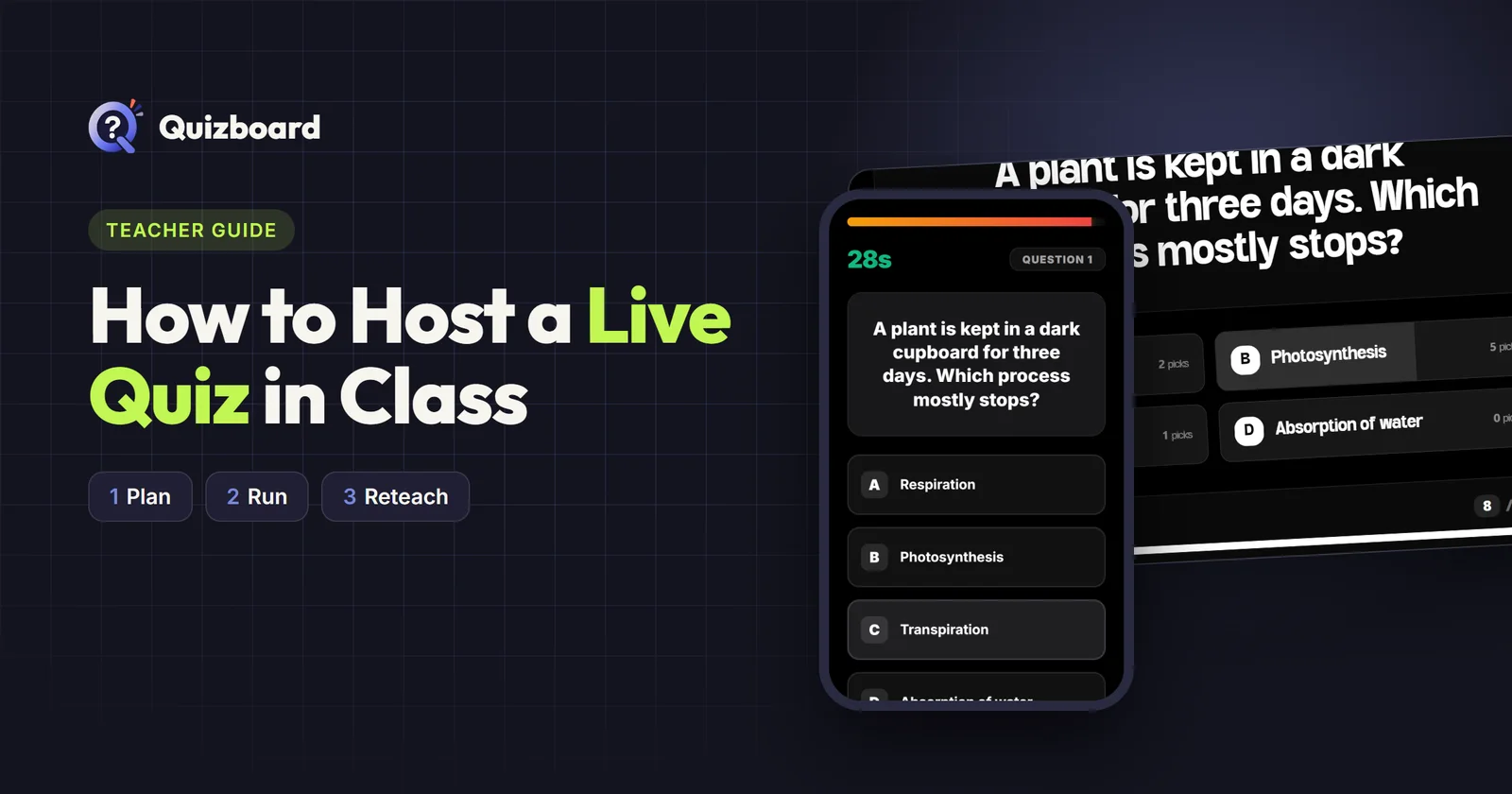
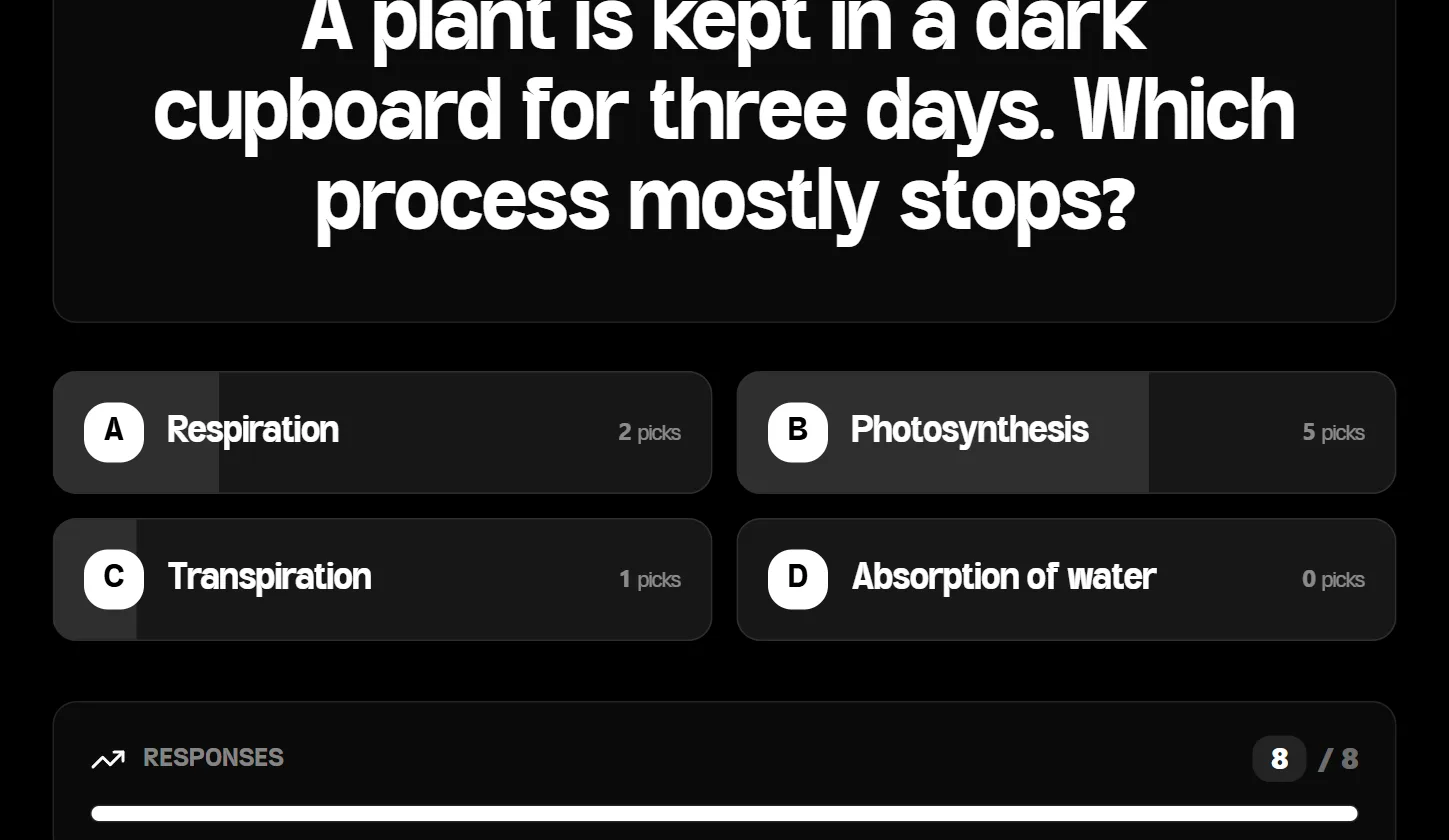
A plant is kept in a dark cupboard for three days. Which process mostly stops? A) Respiration B) Photosynthesis C) Transpiration D) Absorption of water
There's one clearly correct answer, and each wrong option is something students genuinely confuse with photosynthesis. If several students pick Respiration, you've just found a misconception worth five minutes of discussion. (You'll see exactly that happen in Step 6.)
Mix your question types
Quizboard supports three question types:
- Single choice — one correct option.
- Multiple choice — students must select every correct option. Good for "Which of these are needed for photosynthesis?"
- True / False — quick checks, best for common myths ("Heavier objects fall faster in a vacuum").
Step 3:Set timers on purpose
Every question has its own time limit (the default is 20 seconds). Instead of one timer for everything, think reading time + thinking time:
- Recall a fact ("What is the SI unit of force?") — 15–20 seconds
- Apply a concept (the dark-cupboard question) — 30–45 seconds
- Calculation or diagram reading — 45–90 seconds
Because speed earns points, students may rush. On harder questions, give a generous timer and tell the class: "Accuracy matters more than speed on this one."
Step 4:Build the quiz in Quizboard
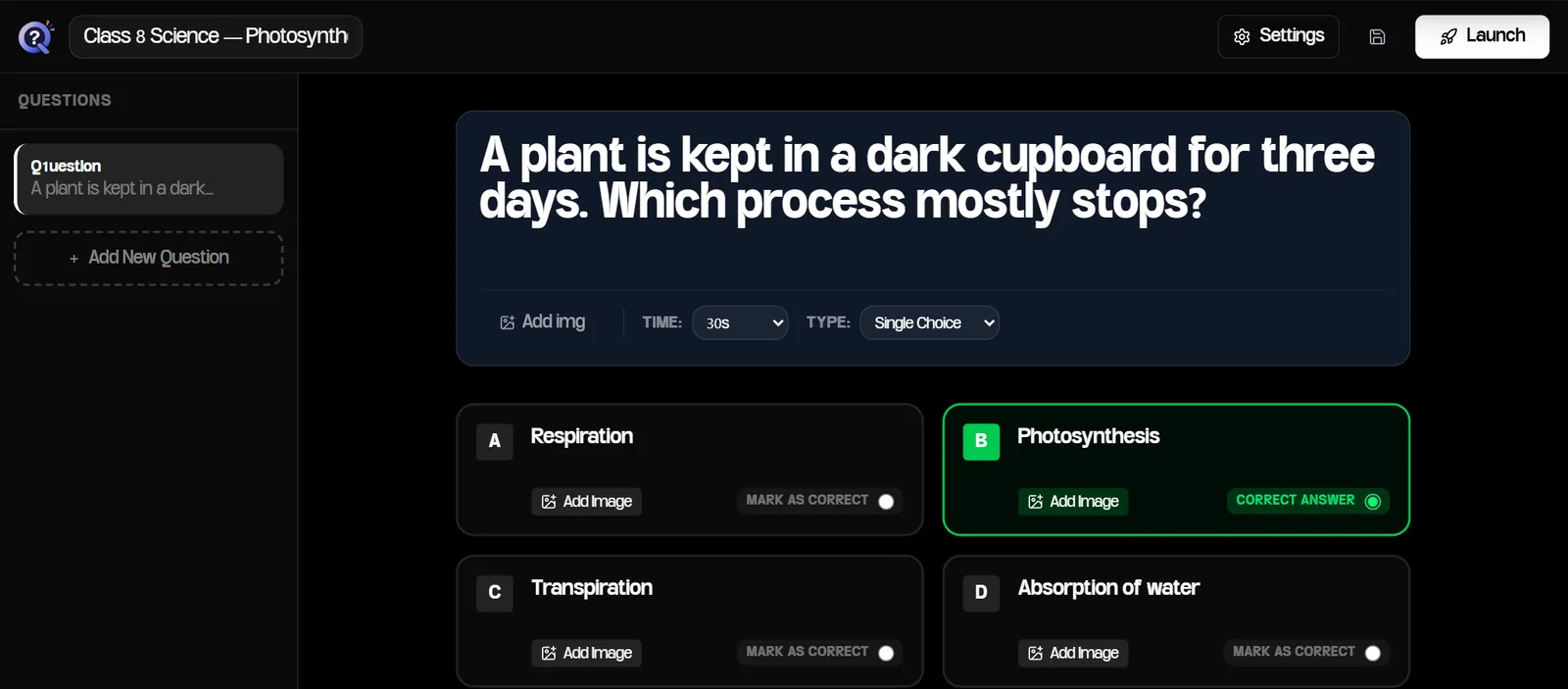
- Log in to your dashboard — you'll land on Create Quiz.
- Give the quiz a title, type your question, and fill in the answer options.
- Pick the Type (Single, Multiple or True/False) and the Time for each question.
- Mark the correct option(s), then click Add New Question for the next one.
- Optionally add an image to the question or to individual options.
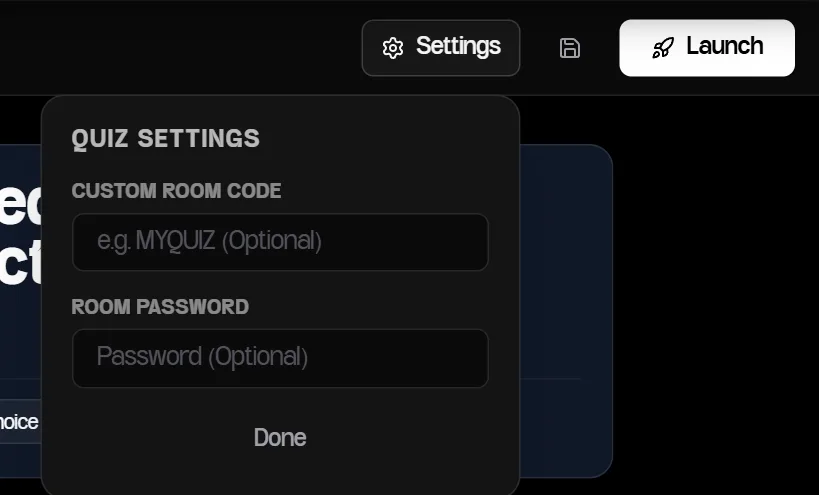
Click Settings before launching if you want a custom room code (e.g. PHY8B — easier to remember than six digits) or a room password for a private session.
Step 5:Get every student joined in about a minute
This is where most live quizzes lose time. A routine that works:
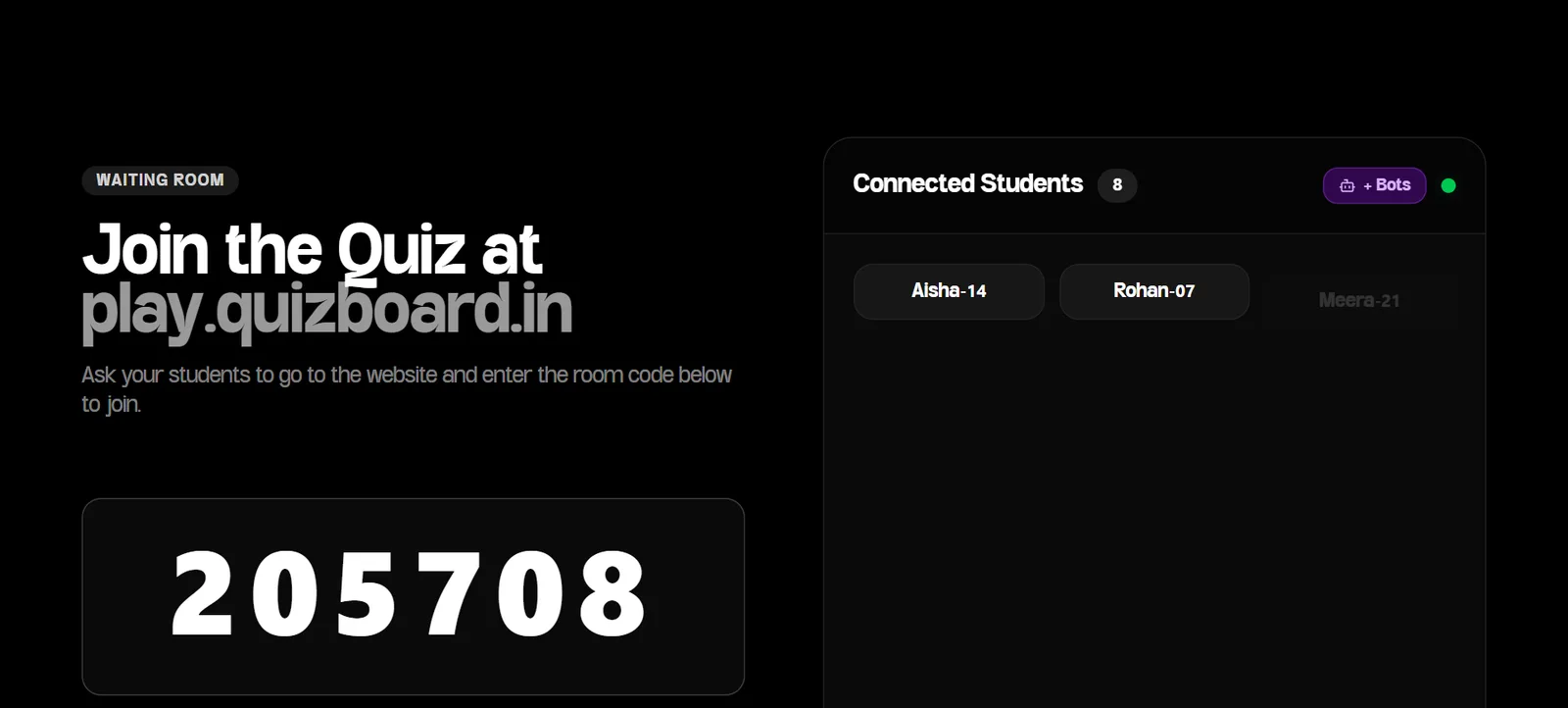
- Click Launch. A waiting-room screen shows the room code and the join address, play.quizboard.in.
- Project that screen. Students open play.quizboard.in, type their name and the code, and tap Join Quiz. Their names appear on your screen as they arrive.
- For online classes or WhatsApp groups, use Share Link — it sends a link with the room code already filled in.
- Announce a naming rule before anyone joins — for example "First name + roll number, like Aisha-14."
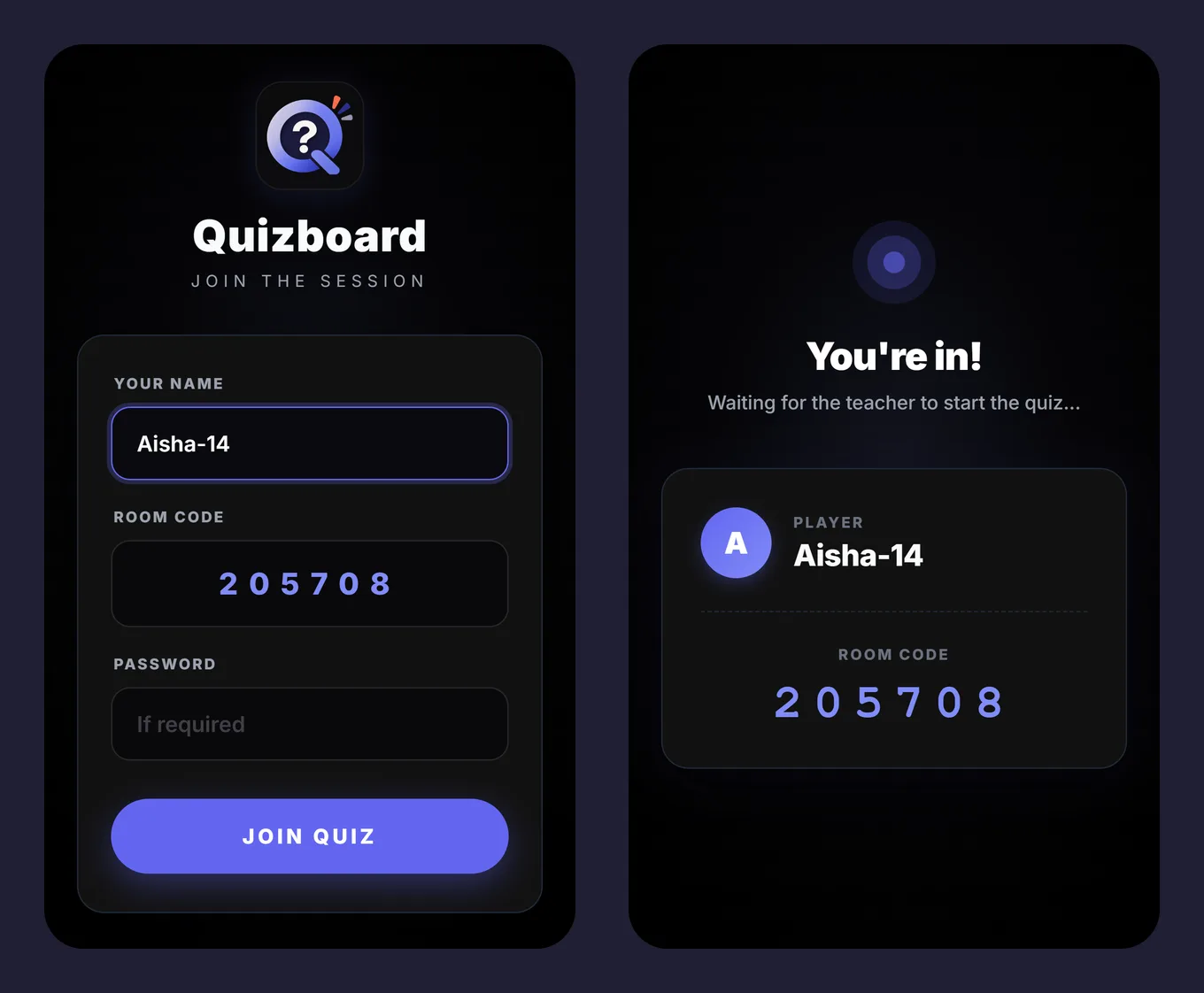
Late arrivals can still join after you've started; they're taken straight to the current question.
Step 6:Run the quiz one question at a time
A live quiz is a conversation, not a test paper. Click Start Quiz Now, then follow this rhythm for each question:
- Read the question aloud. It helps weaker readers and keeps everyone together.
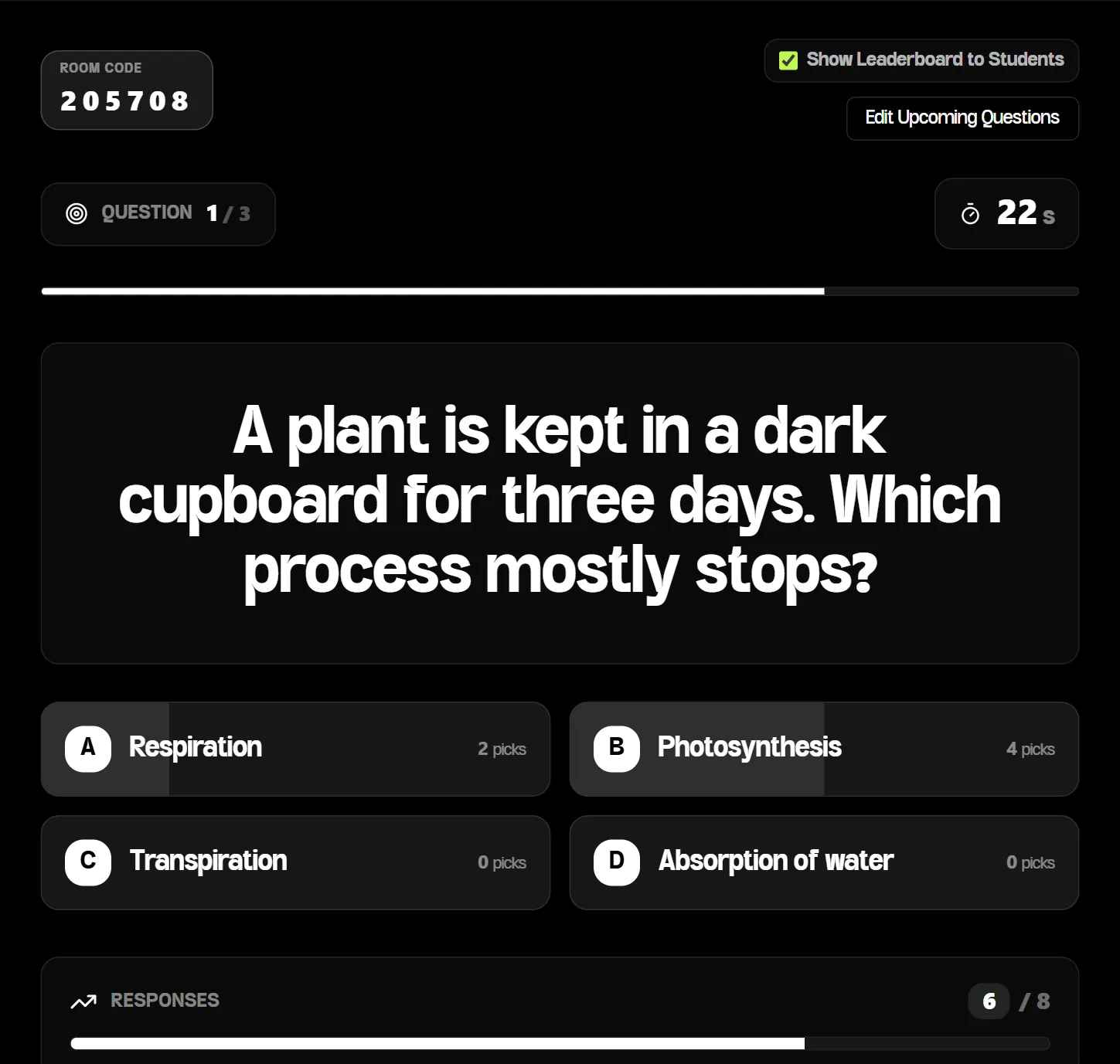
- Watch the responses come in. Your screen shows how many students have answered and how many picked each option — live.
- Look at the spread before revealing the answer. This is the most valuable moment in the whole quiz.
- Reveal the result. When everyone has answered, a Show Results (Early) button appears, so you don't have to wait for the timer.
- Move on quickly — momentum is part of what keeps students engaged.
How to read the spread
In our test session, five of eight students chose Photosynthesis — but two chose Respiration:
Almost everyone correct
Confirm the answer in one sentence and move on.
Split between two options
Stop. Ask one student from each side to explain their thinking, then reveal.
Most students on one wrong option
That's a shared misconception. Re-teach it now, briefly, or open tomorrow's lesson with it.
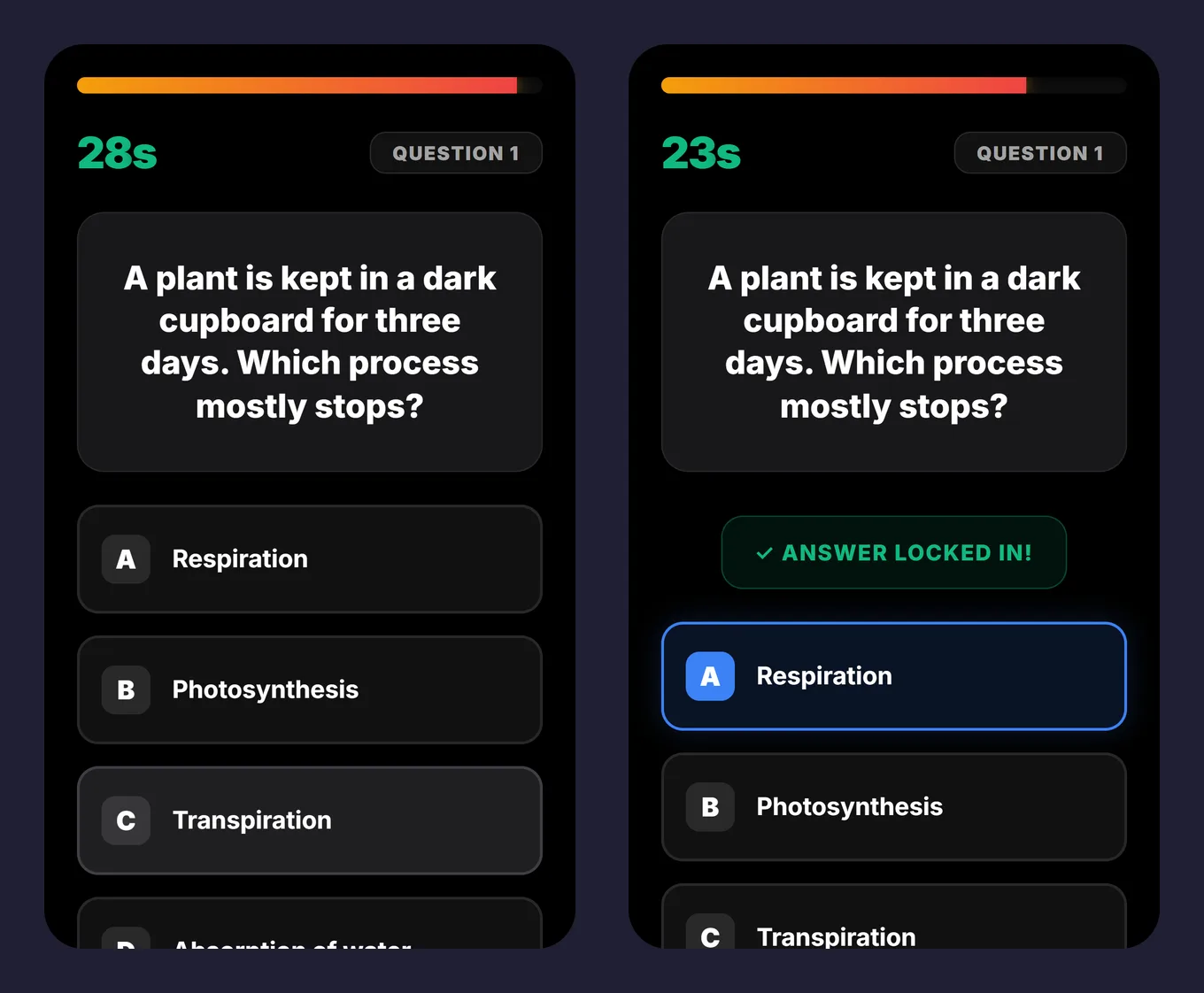
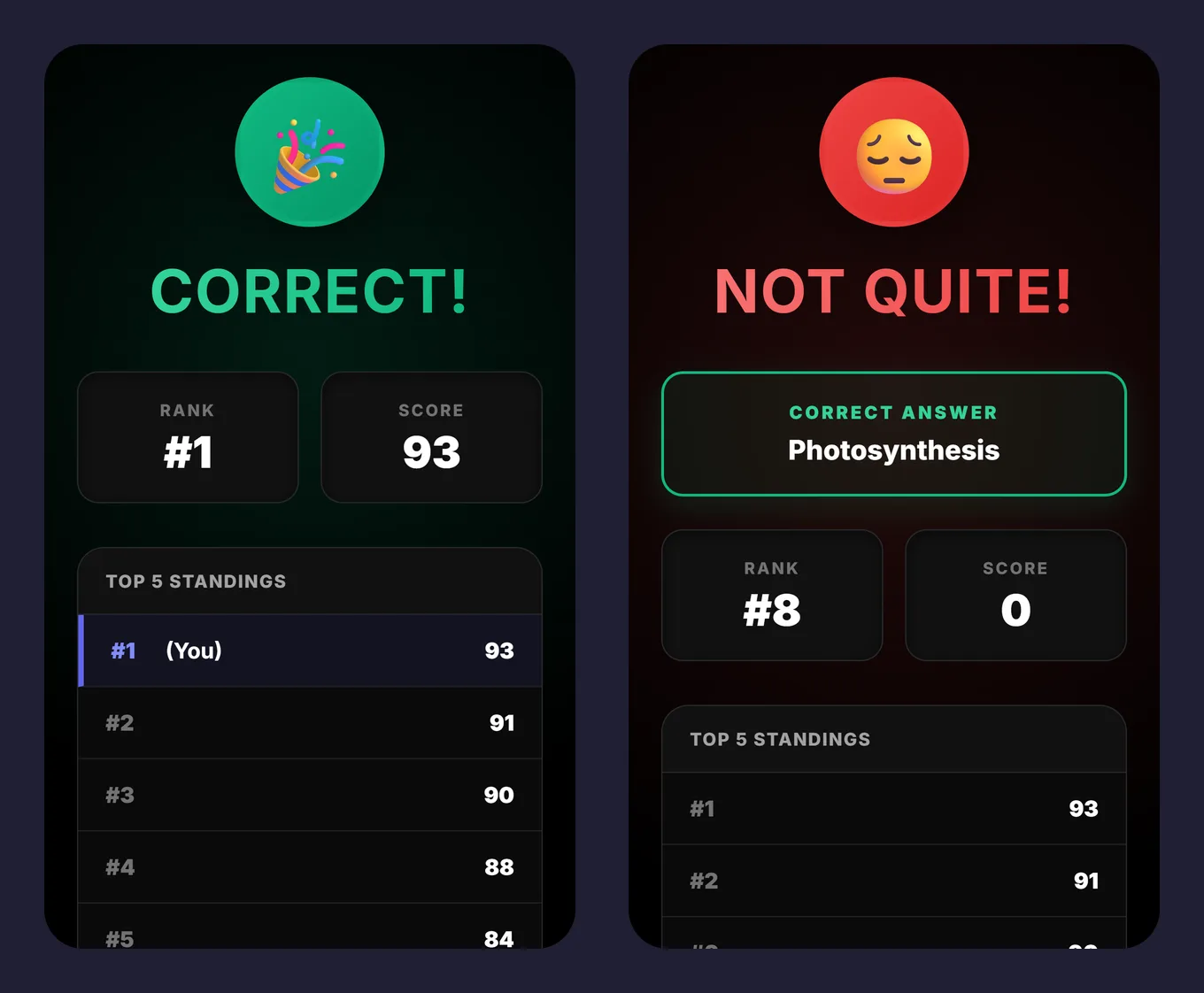
After you reveal, every student instantly sees whether they were right, the correct answer, their score and their rank:
Keep it low-stakes
Leaderboards are fun, but quizzes work best when students don't feel judged. A few habits help:
- Don't record live-quiz scores as grades.
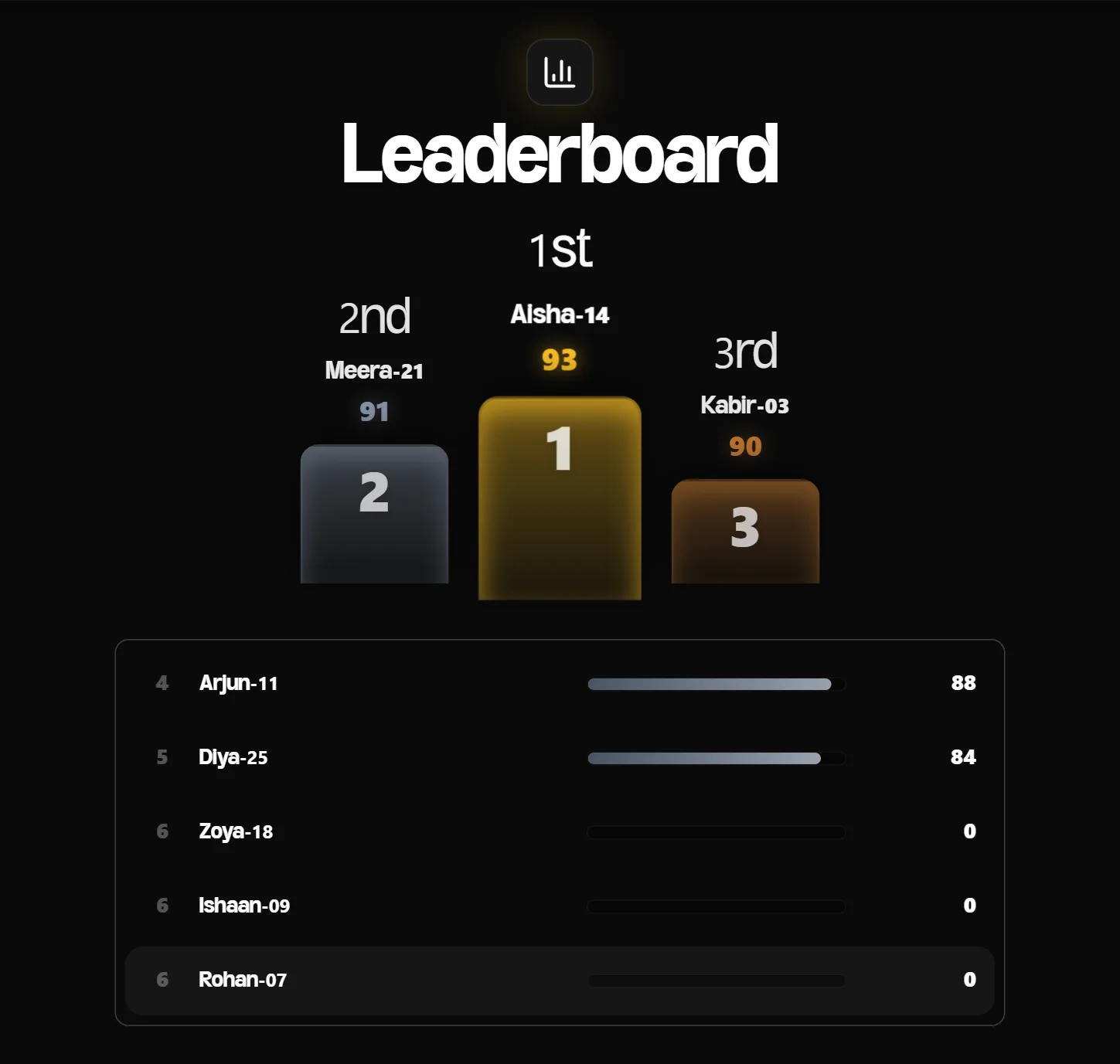
- Untick "Show Leaderboard to Students" (top-right of your live screen) for warm-ups or sensitive groups — students still get right/wrong feedback, without the ranking.
- Celebrate improvement and good reasoning, not just the top three.
- Run some rounds in teams so the same students aren't always at the bottom.
Step 7:Use the results to decide what to reteach
The quiz isn't finished when the final standings appear. Within a day:
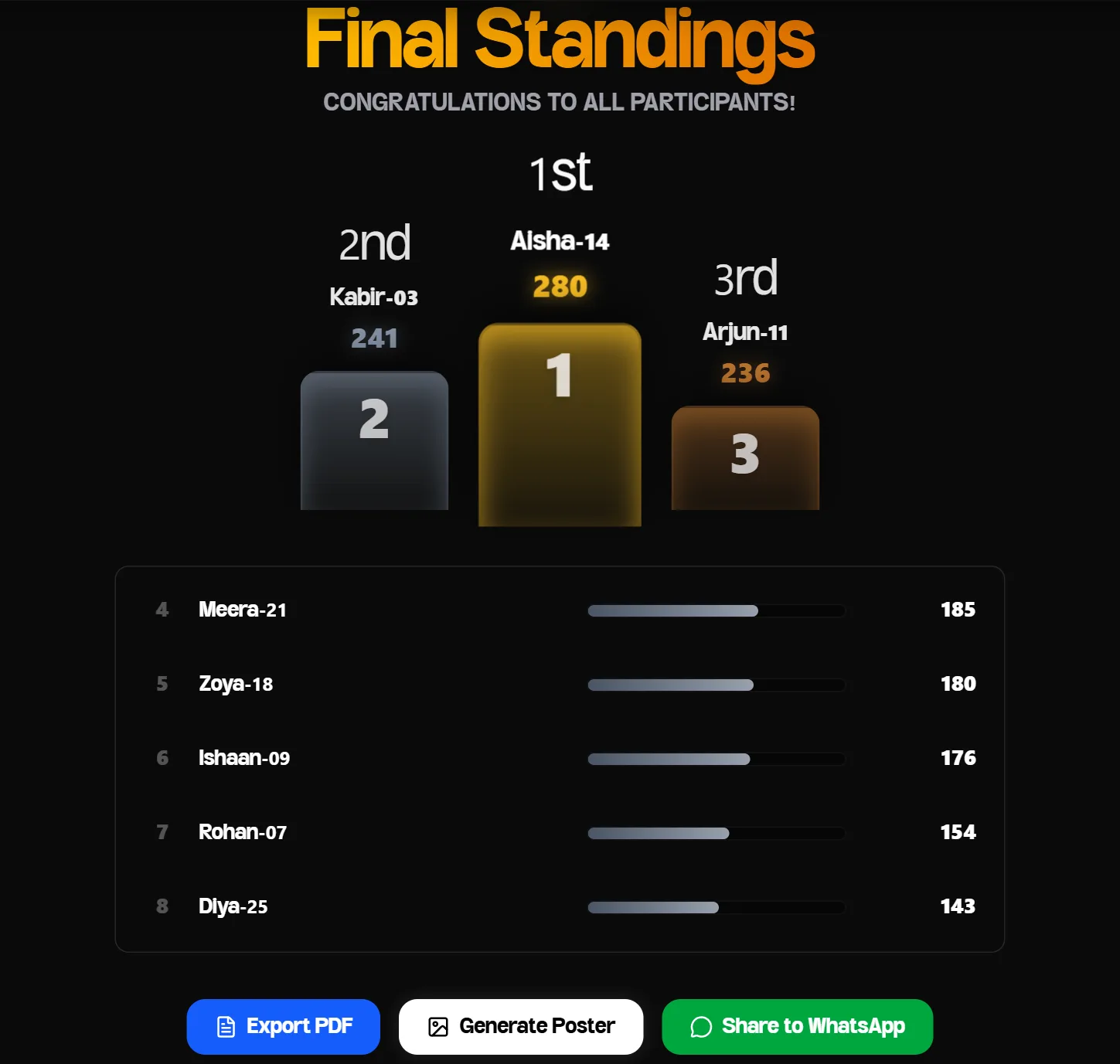
- Review the final standings — every student's total score, with buttons to Export PDF, Generate Poster or Share to WhatsApp.
- Find the two or three weakest questions. On paid plans, the PDF report includes per-question accuracy, sorted from hardest to easiest, so this takes about 30 seconds. On the free plan, note the questions where the class split while you were running the quiz.
- Turn each weak question into an action: re-teach the concept, add it to next lesson's warm-up, or pull a small group of students who missed it.
- Reuse the quiz. Run the weakest questions again a week later as a warm-up — spacing out practice helps it stick. Every session is also saved in your History.

Troubleshooting common live quiz problems
| Problem | Likely cause | Fix |
|---|---|---|
| A student can't join | Typo in the code, or the room has ended | Read the code aloud digit by digit; check the room is still open on your screen. |
| A student's phone disconnected | Weak signal or the browser was closed | Ask them to rejoin with exactly the same name — their score is kept. |
| Two students share a name | Both typed "Priya" | Use the first-name + roll-number rule from Step 5. |
| Wi-Fi is slow | Many devices on one network | Let students switch to mobile data, or play in pairs to halve the load. |
| Not enough devices | Some students don't have phones | Join in pairs or teams under a team name. |
| Teaching over YouTube Live | 5–10 seconds of stream delay | Read the question aloud and add a few seconds to each timer. See our online quiz guide. |
Your pre-class checklist
- Quiz purpose decided (warm-up, check or review)
- 5–12 questions, one idea each, with believable wrong options
- Answer keys double-checked — especially AI-generated questions
- Timers set to match each question's difficulty
- Projector and laptop tested, dashboard logged in
- Naming rule ready to announce (first name + roll number)
- Plan for students without devices (pairs or teams)
- Five minutes kept free after the quiz to discuss the hardest question
Frequently asked questions
Do students need an account or an app?
No. Students open play.quizboard.in in any browser and enter their name and the room code. Only the teacher needs an account.
How many questions should a classroom quiz have?
For a warm-up or mid-lesson check, 3–6 questions take about five minutes. For an end-of-unit review, 10–15 is a good range — beyond that, attention usually drops.
Can I run a live quiz in an online class?
Yes. Share your screen or the room link on YouTube Live, Zoom or Google Meet, and students join from their own devices. If you're streaming, allow for the stream delay before starting each timer. Our guide on how to create an online quiz for students covers the online setup step by step.
Can I stop students seeing the leaderboard?
Yes. Untick "Show Leaderboard to Students" on your live screen. Students still see whether each answer was right.
Is Quizboard free?
Yes — the Starter plan is free for teachers. Paid plans add things like unlimited rooms, PDF reports and more AI usage. See Pricing for current limits.
Try it with your next class
Want to see the student side first? Open play.quizboard.in on your phone, or read how Quizboard works in three steps.
References
- Karpicke, J. D., & Roediger, H. L. (2008). The critical importance of retrieval for learning. Science, 319(5865), 966–968. doi.org/10.1126/science.1152408
- McDaniel, M. A., Agarwal, P. K., Huelser, B. J., McDermott, K. B., & Roediger, H. L. (2011). Test-enhanced learning in a middle school science classroom: The effects of quiz frequency and placement. Journal of Educational Psychology, 103(2), 399–414. doi.org/10.1037/a0021782
Quizboard builds simple live quiz tools for teachers. This guide was written from hands-on testing of a real classroom quiz session, with sources cited for research claims.